
Description:
Enabling auditing on SQL Server records database activities and stores them in a log destination such as a Storage Account, Log Analytics workspace, or Event Hub. Auditing helps organizations meet compliance requirements, monitor database activity, and detect unusual or suspicious behavior that could indicate security risks or operational issues.
Rationale:
Azure SQL Servers act as a platform service where multiple databases can exist. Enabling auditing at the server level ensures that all current and future databases on that server are automatically audited, providing consistent logging across the environment. Server-level auditing is not overridden by database-level settings, ensuring that critical activity is always captured.
Impact:
Enabling SQL Server auditing increases visibility into database activity and strengthens security, but it also generates additional log data that must be stored, monitored, and managed. Organizations may need to plan for storage costs and ensure proper log review processes are in place.
Default Value:
By default, SQL Server Auditing is disabled (Off) in Azure.
Pre-requisites:
Admin permissions on the SQL Server.
A Storage account, Log Analytics workspace, or Event Hub is available for audit logs.
Test Plan:
Sign in to the Azure portal at https://portal.azure.com,
In the portal, search for SQL servers and open the required SQL server.
Under the Security section, go to Auditing.
Check whether Enable Azure SQL Auditing is On or Off.
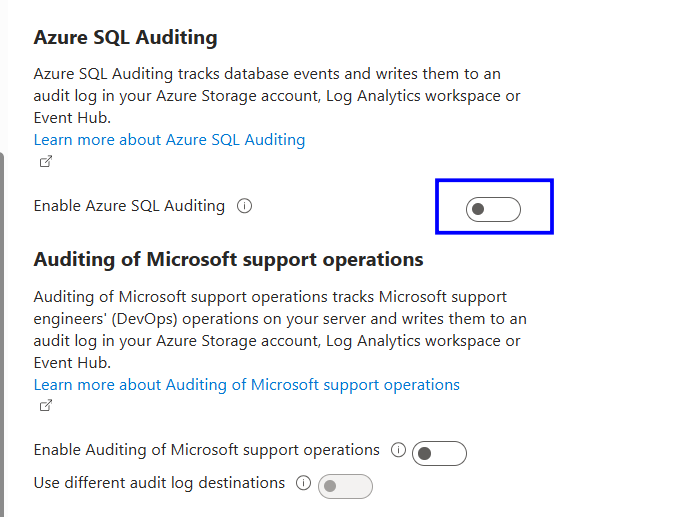
If it is off, follow the Implementation steps.
Implementation Steps:
Sign in to the Azure portal at https://portal.azure.com
In the portal, search for SQL Server and select the SQL logical server under Azure SQL Database, then open the server you want to configure.
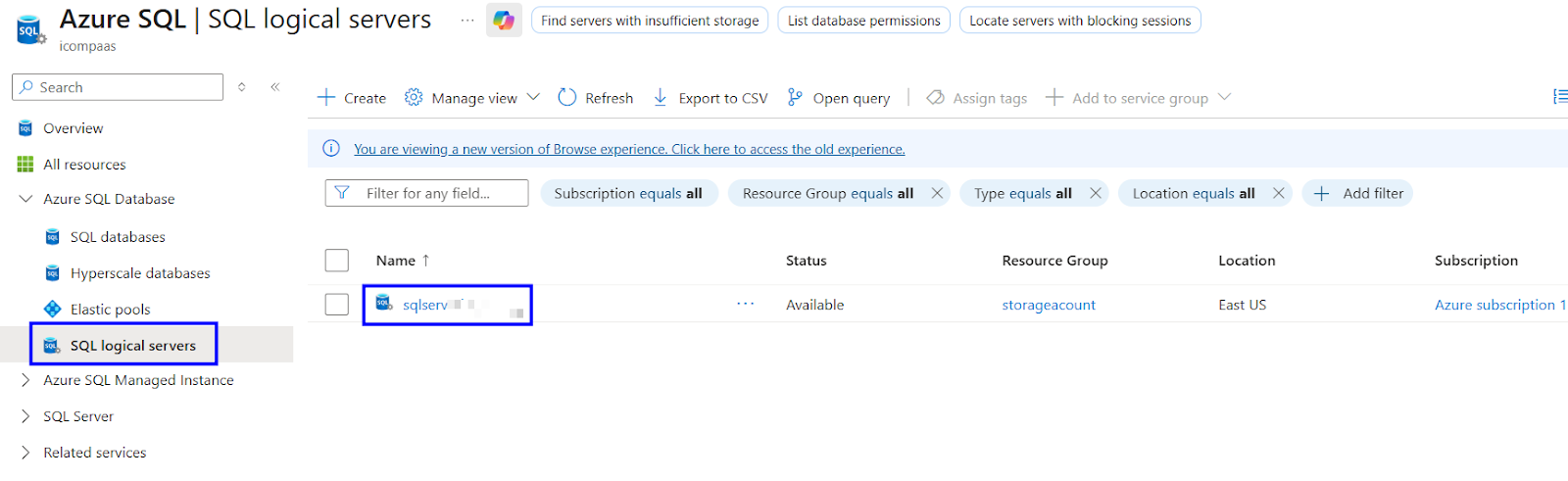
In the left menu, under the Security section, select Auditing.
Turn on SQL Auditing by enabling “Enable Azure SQL Auditing.”
Select the required audit log destination, such as a Storage account, Log Analytics workspace, or Event Hub.
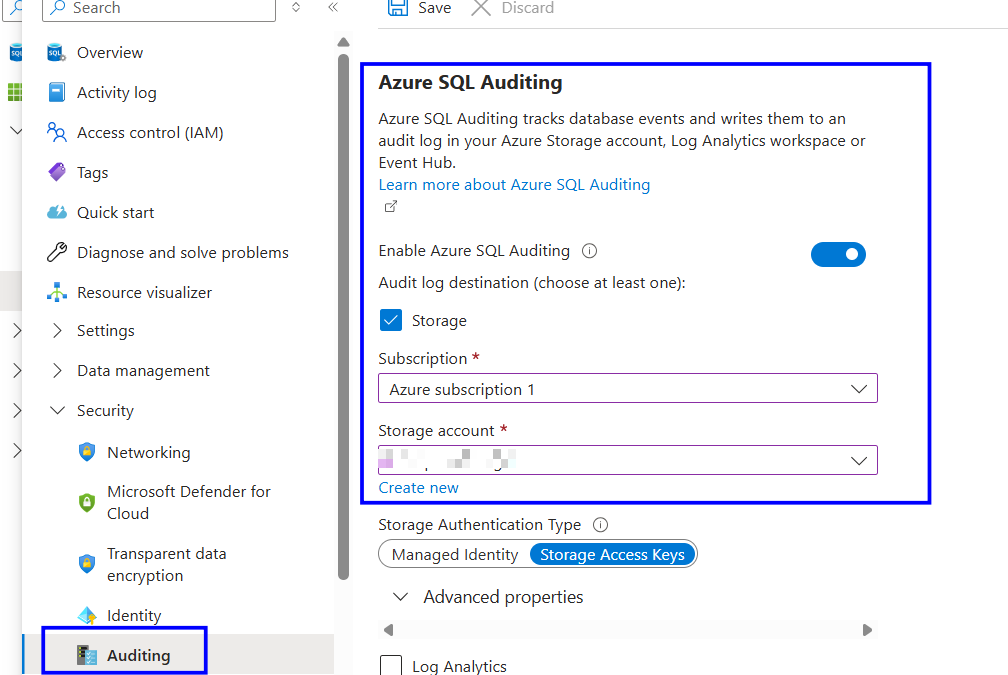
Click Save at the top of the page.
Backout Plan:
Sign in to the Azure portal at https://portal.azure.com.
Search for SQL Server and select the SQL logical server under Azure SQL Database, then open the server you want to configure.
In the left menu, under the Security section, select Auditing.
Turn off “Enable Azure SQL Auditing” by switching it from On to Off, and remove any configured audit destinations if required.
Click Save to apply the changes.
References: