
Description:
The 'Users can register applications' setting in Microsoft Entra ID (formerly Azure Active Directory) determines whether users can register new applications in Azure AD. By default, any user can register their own applications, which can lead to security risks if unapproved or unmonitored applications are introduced into the directory, when this setting is configured to 'No', only users with administrative privileges (such as Global Administrators or Application Administrators) can register new applications in Azure AD.
Rationale:
By setting 'Users can register applications' to 'No':
Enhance security by ensuring that only trusted administrators can create or register applications, reducing the potential for rogue or insecure applications being added to the environment.
Improve governance by limiting the ability to create and manage applications to authorized personnel, thus ensuring that applications are properly reviewed, configured, and secured.
Impact:
Increase control over which applications are added to Azure AD, ensuring that only authorized administrators can register and manage applications.
Prevent users from registering applications unless they have administrative privileges, which helps secure the organization's application environment.
Default Value:
By default, Microsoft Entra ID allows users to register applications unless this setting is manually changed to 'No'. This setting must be configured to restrict application registration.
Pre-requisites:
Sign in using an account with Global Administrator or Privileged Role Administrator permissions.
Access to the Microsoft Entra admin center
Test Plan:
Log in to the Azure portal.
Search for Microsoft Entra ID in the search bar.
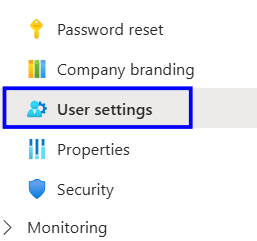
In the left-hand menu under the Manage section, select User settings.
In the Default user role permissions section, locate the “Users can register applications” setting, which has two options: Yes or No.
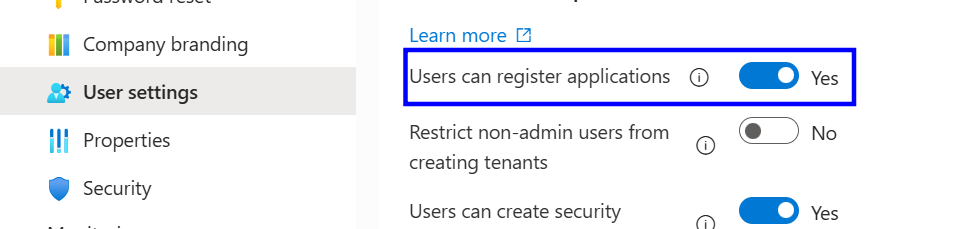
If it is yes, follow the Implementation Steps.
Implementation Steps:
Log in to the Azure portal.
Search for Microsoft Entra ID in the search bar.
In the left-hand menu under the Manage section, select User settings.
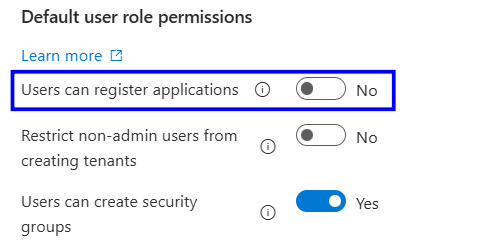
In the Default user role permissions section, change Users can register applications from Yes to No.
Save it
Backout Plan:
Log in to the Azure portal.
Search for Microsoft Entra ID in the search bar.
In the left-hand menu under the Manage section, select User settings.
change Users can register applications from No to Yes, and save.
Reference: